
How to move the database to a new partition or hard drive
Introduction
This article describes how to move the Swing Catalyst database, with all students and recordings, to another folder, partition or hard drive on the same computer. To move Swing Catalyst to a new computer, see Copy the Program Data Folder to a New Computer .
Applicable to: Motion Catalyst & Swing Catalyst
Requirements: A destination folder with enough free space for the database. It can be on the same drive or another drive, but it cannot be the current database folder or the root of a drive.
Preparation
Decide where you want the database to live, and check that the drive has enough free space for the whole database folder.
Moving the Database
When moving the database from one location to another, it’s very important to make sure there’s enough space in the location you plan to move it to.
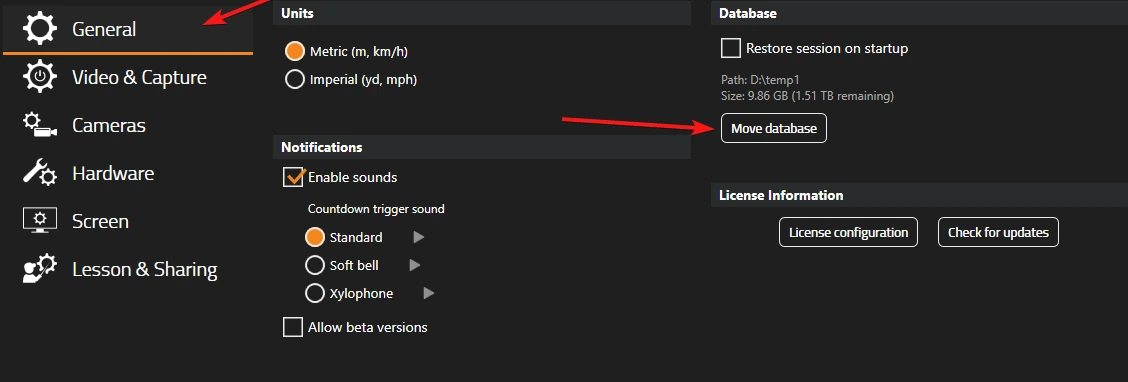
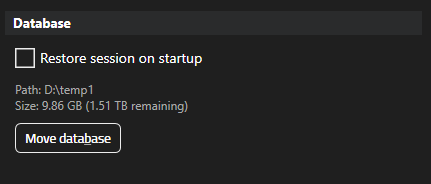
Settings, click on General and make note of the path and the size noted under the Database section.
Make sure you have enough storage space in the new location before choosing a new location.
We suggest creating a folder in the new location. Calling it “SC Database” or something similar.
Click “Move database” and select the newly created folder in the new location.
Please make sure the new folder has enough space available when doing this operation. Swing Catalyst will not move the database to the root of a drive, so select a folder such as D:\SC Database rather than D:\.