How to enable or disable beta versions
This article covers how to in for beta versions, and how opt out and only receive updates for stable releases of Swing Catalyst*.
A beta version is a preview version with new features, functionality and bug fixes available for those who choose to allow beta versions from within the software.
- This article also applies to Motion Catalyst.
How to enable beta versions
Start the Swing Catalyst software.
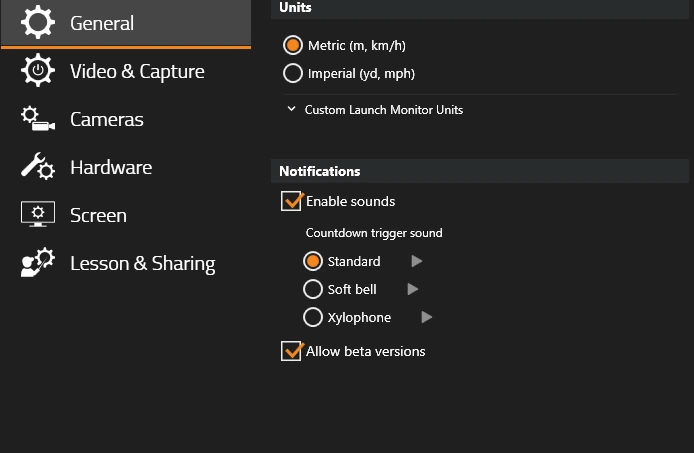
From Settings, go to General Settings, Notifications.
Make sure “Allow beta versions” is checked.
Once Swing Catalyst is restarted beta versions will be enabled and you will receive notifications for new beta versions when available.
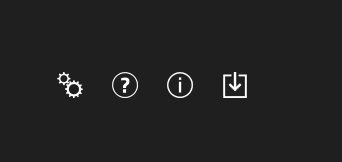
Please see the screenshots at the bottom of the article as they reference the points above.
How to update to a new beta version
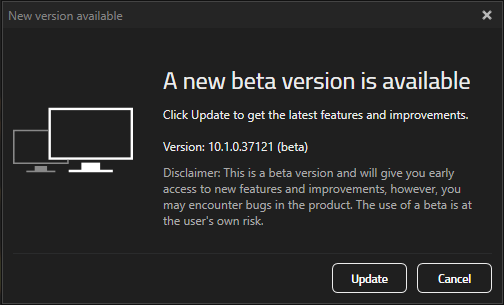
If you have a valid license and your software is configured to receive beta version notifications you will receive a notification similar to the image below when you start the software.
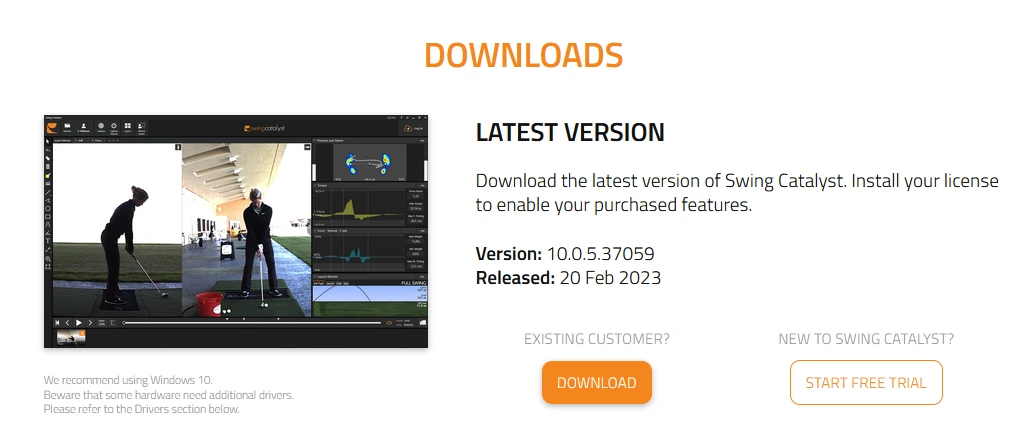
From the Update notification pop up, click “Update”, this should launch a new web browser to the Swing Catalyst website: click the “Download” button to download the newest version. Double click the downloaded file and run the installer.
If you need help with installing the software please see: How to install Swing Catalyst .
How to disable beta versions
Please make sure you follow the instructions applicable to your scenario.
Please make sure to not uncheck “allow beta versions” until after you have installed or uninstalled.
If you no longer wish to use a beta version there are two scenarios that may apply to you:
Scenario A: I wish to use the previous stable version:
Please see our support article on how to install the previous version.
Alternatively, please see our “how to install & uninstall Swing Catalyst” support article and refer to the “uninstall” section.
Scenario B: I want to stay on the software version I’m on and no longer want to receive any beta notifications.
It’s important to ensure the installed version is in fact not a beta version, and that the update notification you’re seeing explicitly mentions “beta”, otherwise proceeding with these steps might lock you out of the software. Please see the troubleshooting section below to see examples of the different update notifications.
Verify you are on the latest version
Verify your license. In Settings, General, under License Information, click “License configuration”.
Make note of the major version listed on the bottom right, “Valid for versions up to”.
Check the current installed version: click About in the main menu and read the product version, for example 26.1.16.
From General settings, ensure you’re connected to the internet and click “Check for updates”, if no new updates are available you’re most likely on the latest stable version.
Uncheck the “allow beta versions” checkbox to no longer receive new beta notifications.
How do I know which version is the stable version?
- Visit our software archive: https://swingcatalyst.com/downloads/ go to Software Archive. All versions listed in this archive are the latest stable release for each major version.
Enabling or disabling Beta versions
Troubleshooting
How can I tell the difference between a beta version and a normal version when I receive a “new version is available” notification?
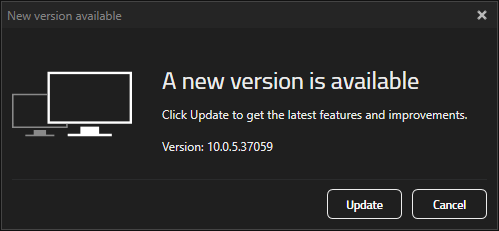
The picture below depicts a stable software version, note there is no mention of “beta” anywhere.
This is a beta version notification, notice that the word beta is used in the main title and also the version has a beta in parenthesis along with a disclaimer.