How to optimize laptop performance
Introduction
This support article describes how you can configure Windows to improve the performance in Swing Catalyst when using a laptop, in particular when running on batteries.
Applies To
- Running Swing Catalyst on a laptop.
Power Options
When using a laptop it is common that Windows uses different power profiles when battery powered. This may result in lowered performance in Swing Catalyst, primarily because the graphics card is put in power saving mode. In addition many laptops come with custom power profiles, which may further reduce performance to increase battery life time.
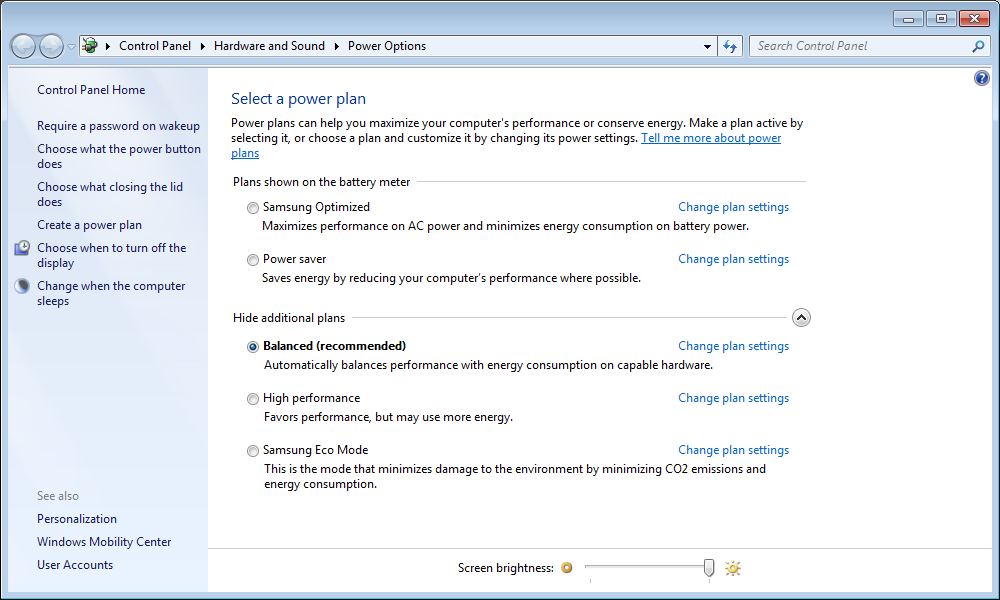
For optimal performance (but shorter battery life), use the “High performance” power plan, as seen in the picture below, if your laptop offers it. Many current laptops offer only the Balanced plan. On those, keep Balanced and set the power mode to Best performance: in Windows 11 under Settings > System > Power & battery > Power mode, and in Windows 10 with the slider under the battery icon.
For good performance and battery life it is recommended to use the “Balanced” power profile. This usually works well.
To choose a power plan in Windows 10 or 11, open the Control Panel and navigate to Hardware and Sound > Power Options.