How to upgrade or downgrade Fox / Lynx firmware
Tow to upgrade or downgrade firmware for Fox or Lynx cameras.
Prerequisites:
A Fox or Lynx camera.
The MVS software suite.
A copy of the firmware for the camera model you want to upgrade or downgrade.
Known good / bad firmware revisions overview, please download the firmware under firmware download.
| Model | Firmware download | Affected firmware model | Known good firmware version |
|---|---|---|---|
| Fox | Download | V1.6.3 201222_551351 | V1.6.3 220416_798858 |
| Lynx | Download | 3.3.1 220915 | 3.3.0 220408 |
The MVS software can be downloaded from: https://cloudfront.swingcatalyst.com/drivers/MVS_STD_3.4.1_220407.zip
Upgrading the firmware
Download the firmware for the camera you wish to update or downgrade from the table above and extract the zip file.
Install the MVS software (if not installed)
Once installed, run the MVS application. The connected camera should show up in the list on the left hand. If it’s listed in the camera list, go ahead and click Tool (in the top toolbar) and select “Firmware Updater”.
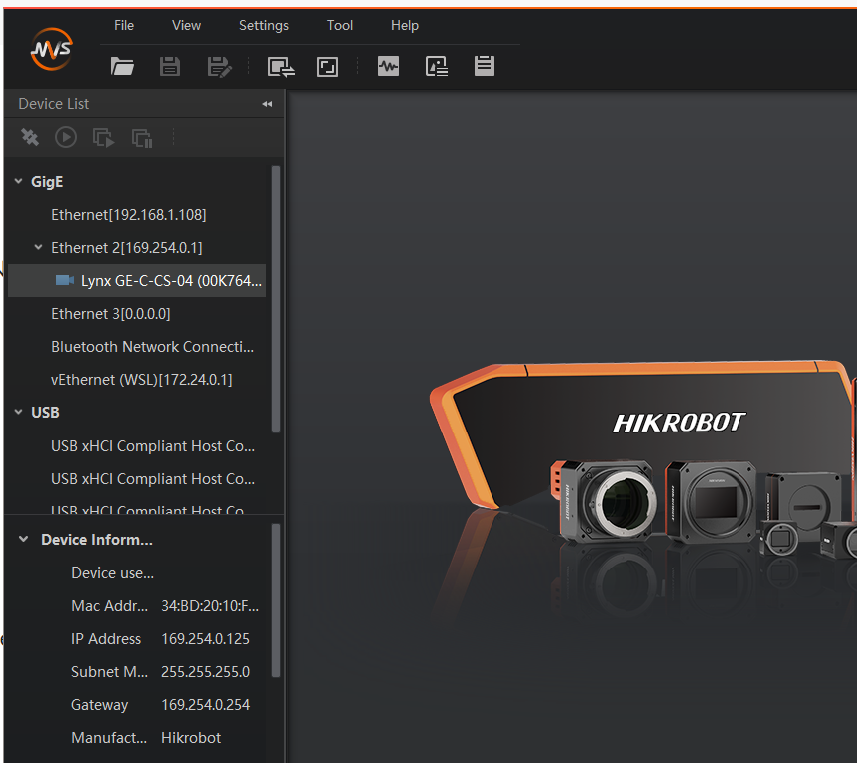
The Firmware Updater application
Note the model name and the firmware version, 3.3.1 is a known non working firmware version (per the table above).
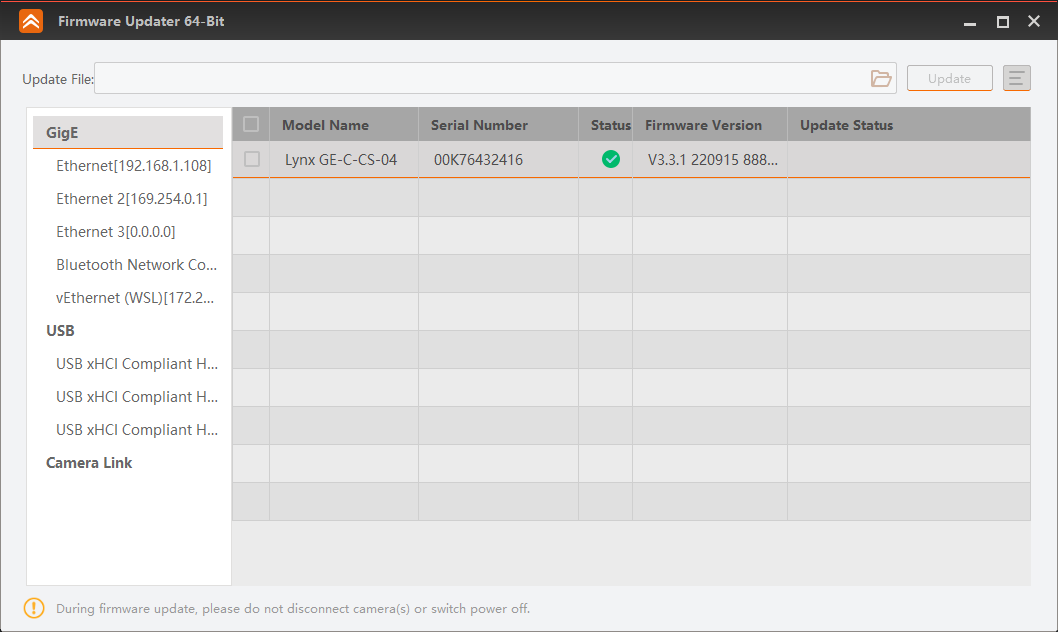
Select the camera(s) you wish to update by checking the checkbox to the left of “Model Name”, then click the “folder” icon in the top right, and browse to the folder you extracted the firmware to.
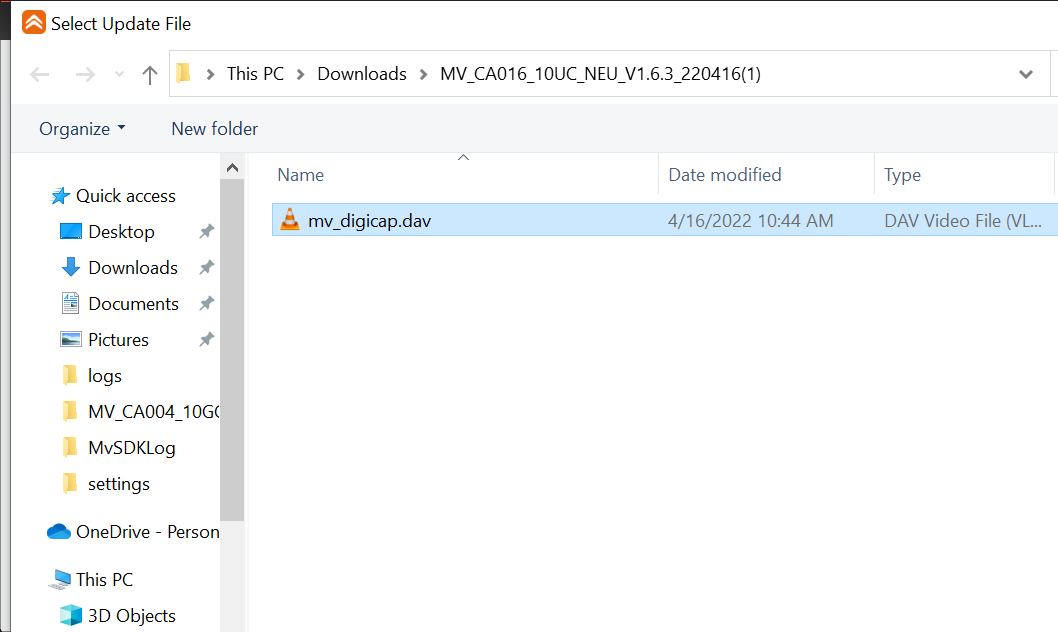
Select the firmware file and click “OK”. The “Select Update File” window will close and you can proceed to click “Update” in the Firmware updater software.
Note: It’s possible to update more than one camera at once but they need to be of the same type / model. Select the firmware file you wish to update.