
How to use the Explorer
Introduction
The Explorer provides an interface for browsing, selecting, and managing video recordings organized by sessions. This document covers how to effectively navigate and use all Explorer features in 25.3 and newer versions.
Overview
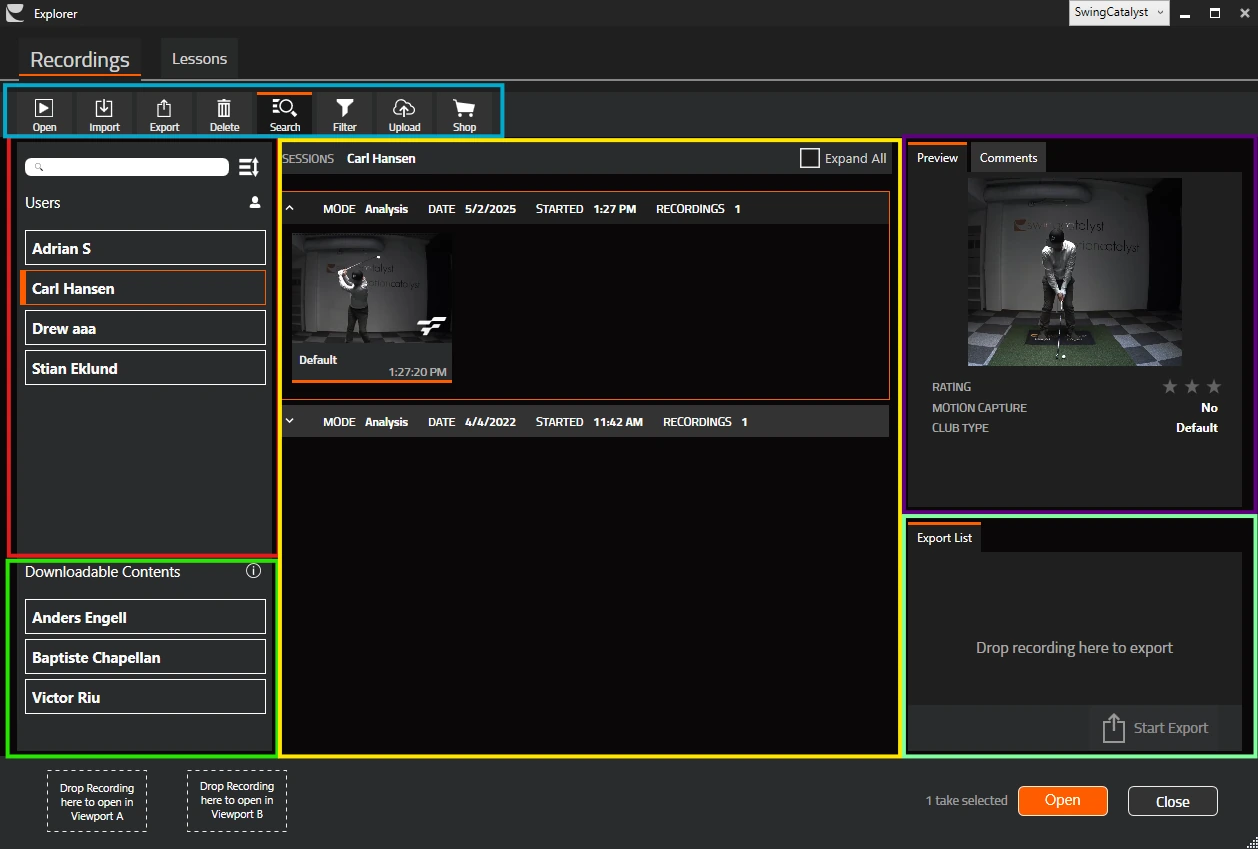
Toolbar: Toolbar with buttons for quick access to all the core functionality of the explorer. To share recordings via Swing Catalyst Online, select them and click Upload in the toolbar.
User list: List of registered users with quality of life features such as a search bar and a sort button.
Downloadable content list: List of downloaded recordings, such as Tour Swings.
Sessions and Recordings: List of sessions that can be expanded to display all recordings for that session.
Preview recording: Preview window showing an animated thumbnail and key information about the recording.
Export list: Drag and drop recordings here to add them to the export list. Recordings can then be exported as a Take file that enables the recording to be imported into Swing Catalyst later, or as raw data TSV files for custom analysis.
Keyboard Navigation
The Explorer supports full keyboard navigation through the recording thumbnails:
Arrow Key Navigation
↑- Move up one row↓- Move down one row←- Move left one column→- Move right one column
Page Navigation
Home- Jump to first item in current sessionEnd- Jump to last item in current sessionPage Up- Move up by visible pagePage Down- Move down by visible page
Cross-Session Navigation
When at the top/bottom of a session, arrow keys automatically navigate to adjacent sessions
Sessions will auto-expand when navigating into them
Selection Behavior
The Explorer implements standard multi-selection capabilities:
Single Selection
Click - Select a single recording
Double-click - Open the selected recording for viewing
Multi-Selection with Mouse
Ctrl+ Click - Toggle selection of individual itemsShift+ Click - Select range from last selected item to clicked item
Multi-Selection with Keyboard
Shift+ Arrow Keys - Extend selection in the direction of navigationCtrl+ Arrow Keys - Navigate without changing selectionCtrl+A- Select all visible recordings in the explorerCtrl+Shift+A- Select all visible recordings in the current sessionEscape- Clear visible selections
Selection Information
Selection Counter: Shows total selected count and visible selected count
Hidden Selections: Indicates when items are selected in collapsed or filtered sessions
Visual Feedback: Selected items are highlighted with a border
Menus and Context Actions
Recording Context Menu
Right-click on any recording to access:
Open - Open the recording
Open session in stack - Open the whole session this recording belongs to in the analysis stack
Add to Export - Add to export queue
Delete - Remove the recording
Reprocess motion capture & detect swing phases - Re-run motion capture on every selected recording. On golf swings this also moves the markers to the detected positions, except on recordings whose markers you moved yourself: those keep their markers and are reported separately, unless your Phase detection setting is Replace my markers with the detected markers. See Golf swing phase detection
The reprocess entry works on the whole selection, not just the recording you right-clicked. It is unavailable when nothing is selected (“Select recordings first.”) and while an earlier batch is still going (“A reprocess is already running.”). While a batch runs, the Explorer shows “Reprocessing motion capture…” with a button to cancel it. See Adding motion capture to existing recordings .
Student/Group Context Menu
Right-click on student names to:
Add User to Export List - Include all user recordings in export
Delete User - Remove the user and all their recordings
Global Commands
Available through keyboard shortcuts:
Enter- Open selected recording(s).Delete- Delete all selected recordingsCtrl+A- Select all visible recordings in the explorerCtrl+Shift+A- Select all recordings in current sessionEscape- Clear current selection
Drag and Drop
Dragging Takes
Drag takes to drop zones
Visual feedback shows drag adorner with recording thumbnail
Drop indicators highlight valid drop targets
Drop Zones
Viewport A/B drop zone- Drop here to open recording(s) in either viewport A or B
Export list drop zone- Drop here to add recording(s) to export queue
Tips for Efficient Use
Bulk Operations: Use multi-selection to perform actions on multiple recordings simultaneously
Keyboard Efficiency: Combine
Ctrl,Shift, and arrow keys for rapid selection workflowsContext Awareness: Right-click menus provide context-appropriate actions
Visual Feedback: Pay attention to selection counters and highlight indicators
The Explorer is designed for efficient workflow management, allowing you to quickly navigate large collections of recordings and perform bulk operations with minimal effort.