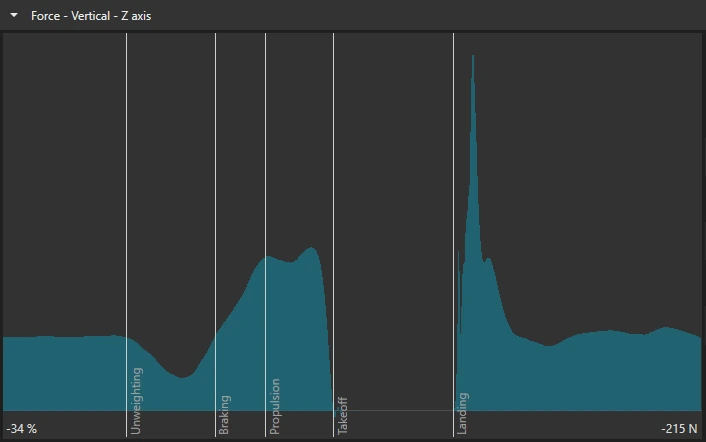
Force graph phases
This article covers the phase display added in 10.2, and automatic phase detection. Ski jump detection was already in earlier versions. Detection for the jump and pull activities was added in 26.2.
Applicable software variants: Motion Catalyst & Swing Catalyst.
Versions: 10.2 and later. Automatic phase detection for the jump and pull activities: 26.2 and later.
Required for capture: Force plate(s) / Motion Plate / Dual Motion Plate.
Required for playback: A recording with force data.
Which version of the software am I using?
Related articles:
What are phases?
All exercises or sports have several phases or transitions of movement.
Some activities have more phases than others, and some terminology is specific to the sport or exercise.
These phases are essential components of any performed exercise or sport, and play a significant role in determining the efficiency, or identifying poor technique. The timing of each phase is important, for example in activities like squat jumps or counter movement jumps, the focus is on explosive lower body power and vertical jumping ability.
We show a light gray vertical line through the graphs at each marker, so you can see where in time each phase starts.
Automatic phase detection
The software can place the markers for several force plate activities itself. It reads them from the recording’s force data. The phase lines and highlights on the graphs then follow the detected markers. Ski jump detection was already in earlier versions. The other activities in the table were added in 26.2.
Ski jump detection is standard. The other activities in the table need a license that includes automatic phase detection. Without it, their markers stay at the activity’s preset times, and you drag them into place yourself.
| Activity | Markers detected | License |
|---|---|---|
| Counter Movement Jump | Unweighting, Braking, Propulsion, Takeoff, Landing | Needs automatic phase detection |
| Squat Jump | Propulsion, Takeoff, Landing | Needs automatic phase detection |
| Drop Jump | Initial Contact, Takeoff, Landing. Box Exit is placed at the start of the force data and is not detected. | Needs automatic phase detection |
| Repeated Hops | Start of Hops, End of Hops. Start of Steady State is not detected and is not on the recording after detection. See below the table. | Needs automatic phase detection |
| Isometric mid-thigh pull | SoM, SoH, Peak Force, EoH, EoM | Needs automatic phase detection |
| Ski jump | Before Jump, Start of Jump (110% force), Take-Off | Standard |
For the isometric mid-thigh pull, detection finds three moments: the start of still standing (SoM), the start of the pull (SoH) and the peak force. EoH and EoM are both placed at the end of the recording, so the Release phase has zero length.
On a Repeated Hops recording, detection leaves only two markers: Start of Hops and End of Hops. There is no Start of Steady State marker to drag. To set all three markers yourself, choose Use the default markers for this activity in the marker menu . All three markers go back to the activity’s preset times, and automatic detection is turned off for that recording. Then drag the markers into place. The detect button turns detection back on and replaces the markers with the two detected ones again.
How detected markers interact with markers you placed yourself, the detect button, and how to go back, are covered in What are markers? . Baseball pitching detection uses motion capture, not force data: see Baseball pitching .
What the recording needs
Every activity needs a recording with force data from the plates. When detection finds nothing usable, a warning under the video says why and what to do. Most fixes mean recording again:
| Activity | Record it like this |
|---|---|
| Counter Movement Jump | Stand still on the plate for a second or two before the countermovement. Make a clear dip, then a distinct drive. Keep recording until after the landing. |
| Squat Jump | Hold the bottom of the squat still for a second or two, then drive up in one movement. If the athlete dips before the push, the phases are still detected. Hold the pointer over the markers or the detect button to see a note that the numbers are those of a countermovement jump. Keep recording until after the landing. |
| Drop Jump | Start the capture before the athlete steps off the box, so the plate is empty at the start. Capture the rebound jump and the second landing. |
| Repeated Hops | Stand still on the plate for a second or two, pause, then hop in place. Keep recording until the athlete is back on the plate. |
| Isometric mid-thigh pull | Stand still for a moment before the pull. Keep recording until well after the pull starts, because rate of force development is measured over the first part of the pull. |
| Ski jump | The athlete’s body weight must be known. It comes from the athlete’s profile, or from the athlete standing still on the plate. Set a weight on the athlete, or record them standing still before the jump. A weight under 20 kg is too low to detect a jump from. |
On a ski jump recording where detection finds nothing, hold the pointer over the markers above the timeline. A tooltip says why and what to do. The reason can be that the athlete’s body weight is unknown or under 20 kg, that there is too little force data, that the force never rose the way it does in a jump, or that the takeoff, the start of the jump or the start of the drive could not be found. If none of these applies, set the markers by hand.
Highlighted phases
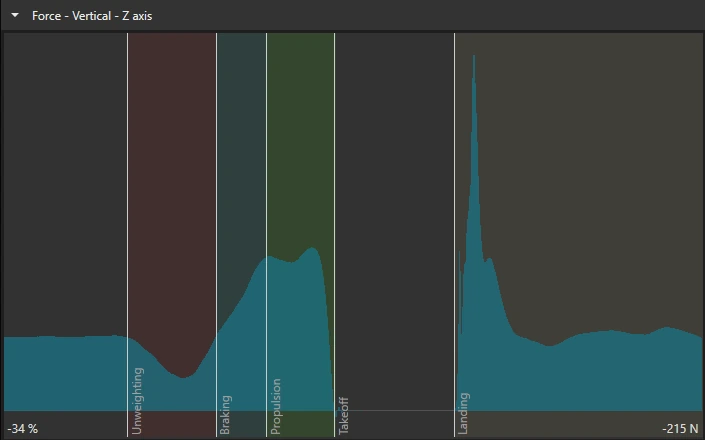
Each phase, except the flight phase after takeoff, has a different highlight accent to easily allow you to distinguish between them. The flight phase is not shaded.
The phases are available for the “Force” axis, and “Center of Pressure” axis databoxes. If the markers are changed the location of these phases will change.
Example of a counter movement jump:
Options
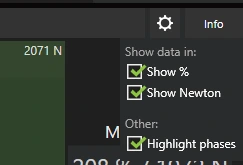
Phase highlighting is off by default. To turn it on, click the gear icon next to the databox and check the “Highlight phases” option under Display options. Uncheck it to turn highlighting off again.
Example of highlight phases turned off: