
Key Metrics
Key metrics are values derived from force data, shown together in the Key Metrics databox.
This article is about the Key Metrics data box. Version 26.2 added a separate Key Metrics column in the analysis view: see The Key Metrics Column .
This article covers the new key metrics databox introduced in version 10.0. Although released in version 10.0 this article covers functionality available in 10.2 which may be different from earlier versions.
Available in version: 10.2 and up.
Applicable to: Motion Catalyst
Required hardware: Force plate(s) / Motion Plate / Dual Motion Plate. The golf timing metrics described below are the exception: they are calculated only from the marker positions, so they also work on camera-only recordings.
Software license that supports key metrics.
What are key metrics?
The key metrics are derived from force data and analysis is performed on this data.
Different activities have different key metrics, and not all activities have the same amount of key metrics available.
What activities are key metrics available for?
Key metrics specific to the activity are available for these activities:
Counter Movement Jump
Drop Jump
Isometric Mid-Thigh Pull
Repeated Hops
Squat Jump
Golf Swing
Golf Putt
Baseball Batting
Baseball Pitching
Other activities, such as Static Balance, Dynamic Balance, Push Up, Plyo-push up and Upper Body Plank, show only the general metrics. Golf Swing and Baseball Batting key metrics need a license that includes them.
Golf swings have their own set of timing metrics, described below.
Golf timing metrics
Three timing metrics are available for golf swings. The values are worked out from where the swing markers sit on the timeline. The metrics do not use pressure or force plate data, so they also work on camera-only recordings. Like the other Golf Swing key metrics, they need a license that includes them.
| Metric | What it measures | Unit |
|---|---|---|
| Tempo Ratio | Backswing time divided by downswing time, in other words Start of Take Away to Top of Swing against Top of Swing to Impact | Ratio (no unit) |
| Transition Duration | Time from Top of Swing to Early Downswing | Milliseconds |
| Release Timing | Time from Impact to Release | Milliseconds |
Tempo Ratio has a target range of 2.0 to 3.0. The classic reference is a 3:1 tempo, so a value of 3.0 means the backswing took three times as long as the downswing.
Tempo Ratio only needs Start of Take Away, Top of Swing and Impact, so it works on older golf recordings too. Transition Duration and Release Timing read the Early Downswing and Release markers, which only exist on recordings with the ten detected swing markers. On a recording without them, those two metrics report that a marker they need is missing.
These metrics are only as accurate as the marker positions they are read from. If the markers are in the wrong place, so are the numbers. Letting the software place them from motion capture is the most reliable option: see Golf swing phase detection .
Metrics on placeholder markers
From version 26.2, a metric that is measured at or between placeholder markers no longer shows a number. Placeholder markers sit at the activity’s preset times, not at the moments in the recording, so a value read from them would not be a measurement. This applies to every activity. See What are markers? for how to tell placeholders apart.
In the Key Metrics column , such a card reads No data, with this message:
The markers on this recording are placeholders, not detected positions. Use detected markers, or drag the markers into place, to measure this metric.
The card also shows the detect button from the marker bar, with the same label: Detect phases, Use detected markers or Redo detection. In compare mode the cards have a button for each recording. The button is not shown when the recording has no phase detector, for example on an activity without detection or on a baseball pitching recording, or when your license does not include automatic phase detection. Then drag the markers into place yourself.
The check is per marker. Once you drag a placeholder marker into place, it is no longer a placeholder, and a metric that only uses moved markers gets a value again.
A metric calculated from other metrics also reads No data when one of those metrics rests on a placeholder, with the same message.
Other No data messages you may see:
- “This metric is measured at a marker that is missing from this recording.”
- “No stance is available because this recording does not have the markers the stance is measured between.”
The Key Metrics data box
Key metrics is a new databox that shows key values from valuable points in an activity.
It’s possible to customize which key metrics are shown by selecting each “tile” and selecting from the key metrics drop-down menu. These selections will be remembered for the next recording you open, similar to how it remembers which databox is shown.
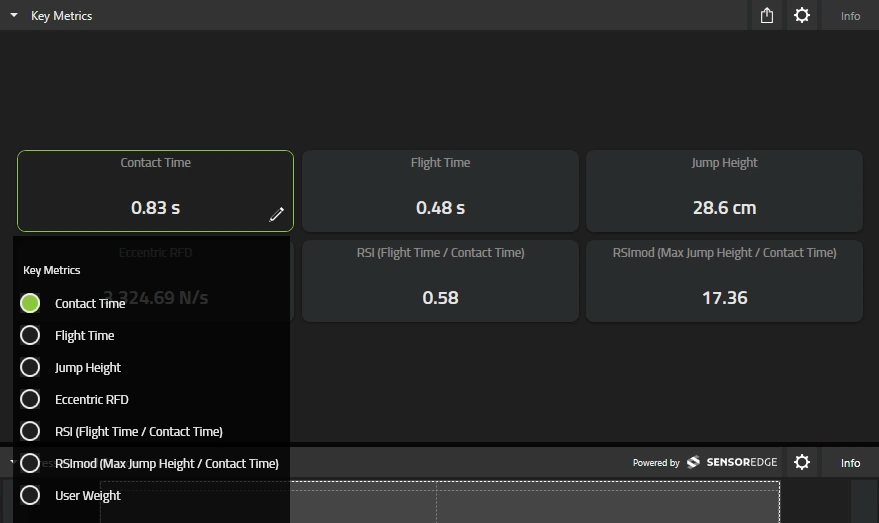
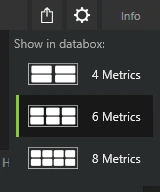
Presentation options
It’s possible to change the layout of the Key Metrics databox from 4, 6 or 8 metrics.
Reducing the amount of metrics can be helpful to reduce clutter and improve visibility.
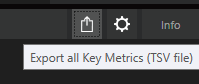
Export all key metrics (TSV)
The Key Metrics databox also supports exporting all of the available key metrics to a tsv (tab separated values) file directly from the databox itself.
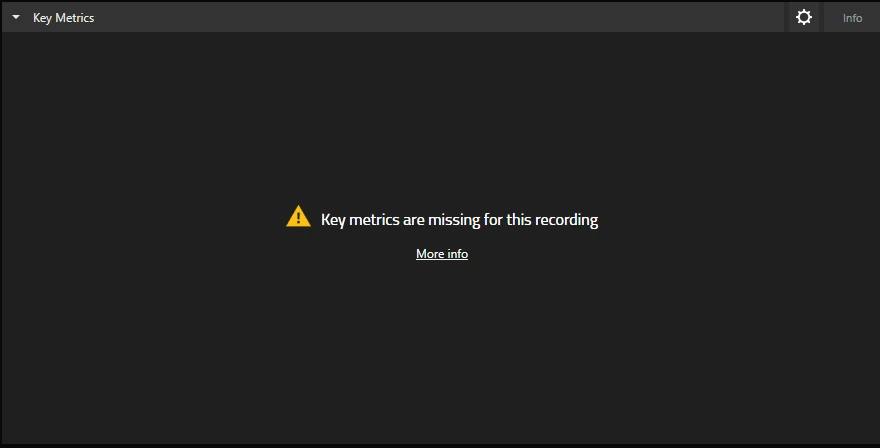
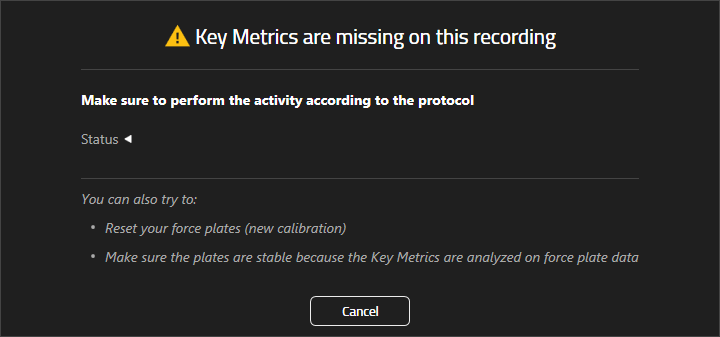
Key metrics are missing for this recording
In some cases key metrics aren’t available for a specific activity or the recorded activity, clicking “More info” can reveal more information about why key metrics are unavailable.
Common causes:
Not performing the activity properly / according to protocol.
Moving too much before performing the activity.
Incorrect body weight configuration.
Bad force plate calibration (try to calibrate / zero the force plates).
Improper force plate setup.
I don’t have the Key Metrics data box
Key metrics is only available for Motion Catalyst and for a select number of activities.
Possible causes:
License doesn’t support key metrics.
Not using Motion Catalyst / no license for Motion Catalyst.
Activity or sport doesn’t support key metrics.