
How to export raw data
This article covers how to export raw data from Swing Catalyst or Motion Catalyst as tsv files.
Note, files exported aside from student details are tab separated, make sure to select tab delimited in your spreadsheet viewer.
Looking to export student information? See this article .
There are several ways to export data, through the Explorer and from the stack. Both options allow the same functionality.
Exporting data from the Explorer
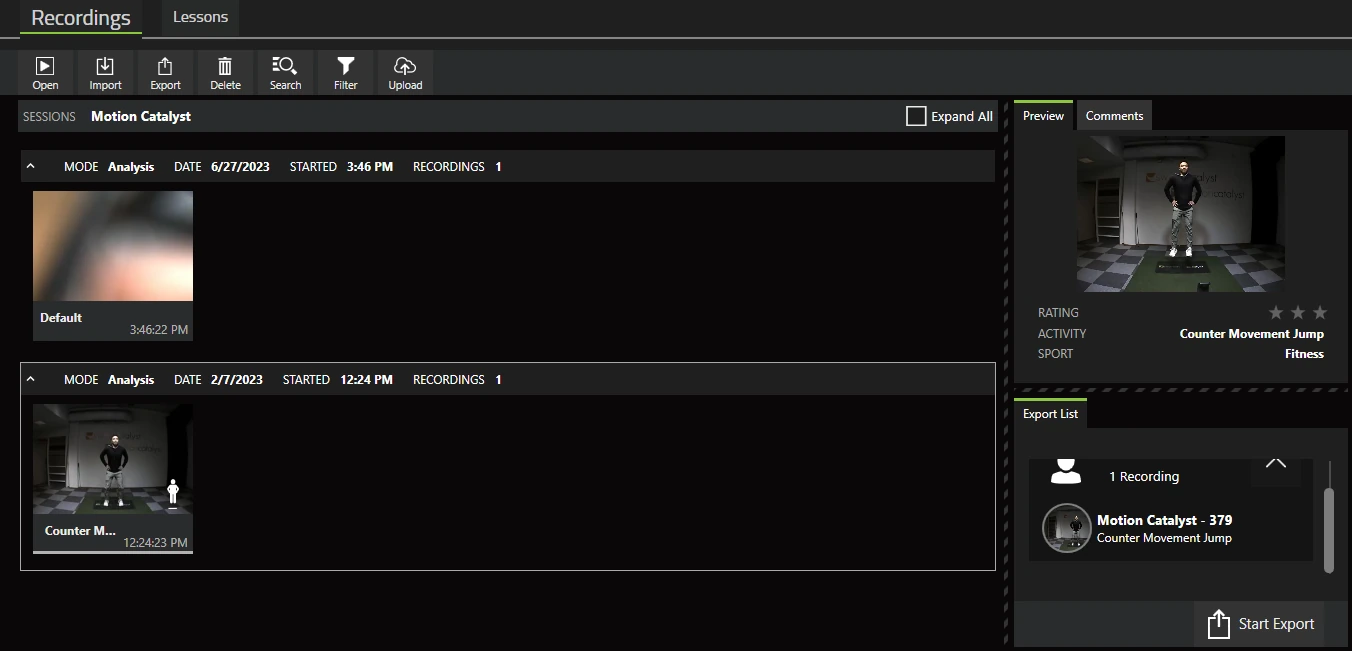
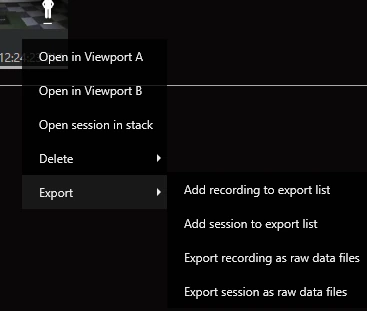
In the Explorer data can be exported by right clicking on a recording, selecting Export and choosing from the available options, or dragging the recording(s) to the Export List.
Menu selection
Function
Add recording to export list Adds the selected recording to the export list. Same as dragging the recording to the export list
Add session to export list Adds a whole session to the export list. Amount of recordings that appear in the export list
depend on how many recordings are in the session itself.
Export Recording(s) as Raw Data Exports the selected recording with the raw data export options
Export Session as Raw Data Exports the session recordings that match the current Explorer filter, with raw data export options. With no filter active, that is the whole session.
An overview of the export options that are available by right clicking:
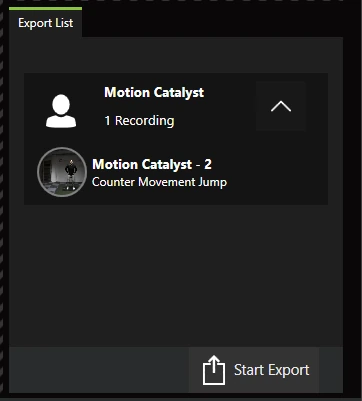
The export list:
Data Export selection
It’s possible to choose from a few different options when exporting data.
This article mainly focuses on raw data.
To export raw data, make sure to select “Raw Data” in the Export dialog.
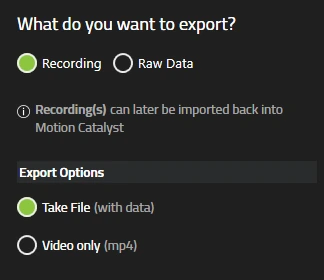
Raw Data options
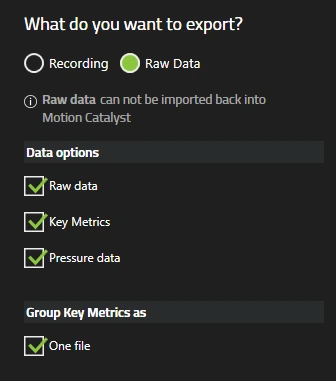
Please note that this functionality is still being improved on, currently a lot of options are bundled with “Raw data”.