How to use a microphone as a capture trigger
This article describes how to use a microphone to automatically trigger a recording when hitting the golf ball.
Applies To
Swing Catalyst 4.5 and later
Related
Solution
Start Swing Catalyst and open Hardware settings from the settings menu
If you are using an external microphone please make sure to connect it.
Under the “Trigger Device” section, select the microphone you wish to use.
Enable the microphone checkbox.
Swing Catalyst will now automatically trigger a video recording every time a shot is registered.
We support most microphones, depending on the use scenario we recommend having a microphone as close to the ball as possible in order to have the mic gain low to prevent accidental triggers.
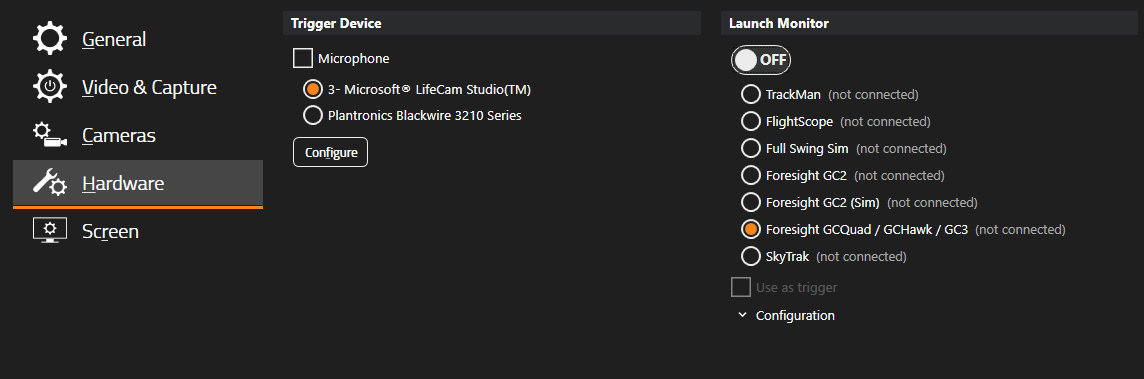
A enabled microphone as trigger device example:
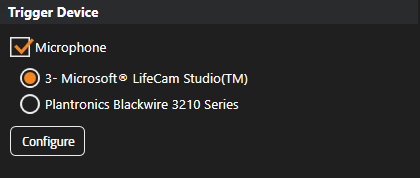
To configure the microphone click the “Configure” button.
Sensitivity Adjustment
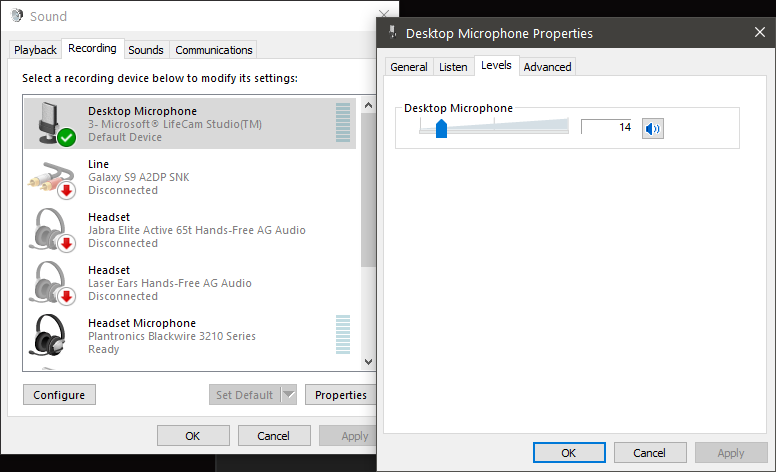
The microphones sensitivity can be adjusted by dragging the slider under the “Levels” tab, or from Swing Catalyst itself (assuming you are in capture mode):
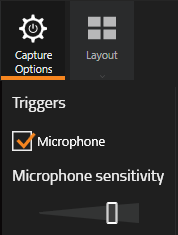
The more to the left the slider is, the more sensitive the trigger will be.
Adjust the microphone sensitivity and test it during capture mode. A good threshold is where it triggers a swing when you clap your hands loud, but does not trigger while someone is speaking in the background. You may have to try this a few times to get it perfect.